Reanimate & Upscale Video
with AI — No Reshooting
Reprocess, reanimate and upscale your existing videos with AI — no reshooting, heavy software or technical skills needed. Four specialized models for every need: from quality upscaling to complete video style reconstruction.
Reanimate and Upscale Video with AI — Complete Guide to DeepFA Video to Video Tool
DeepFA AI Video to Video is a specialized and professional environment for transforming, reconstructing and enhancing existing videos using AI models. Unlike text-to-video or image-to-video tools that start from scratch, this tool takes your ready-made video and with the right model selection generates a new version with higher quality, different style or animation effects — no reshooting needed.
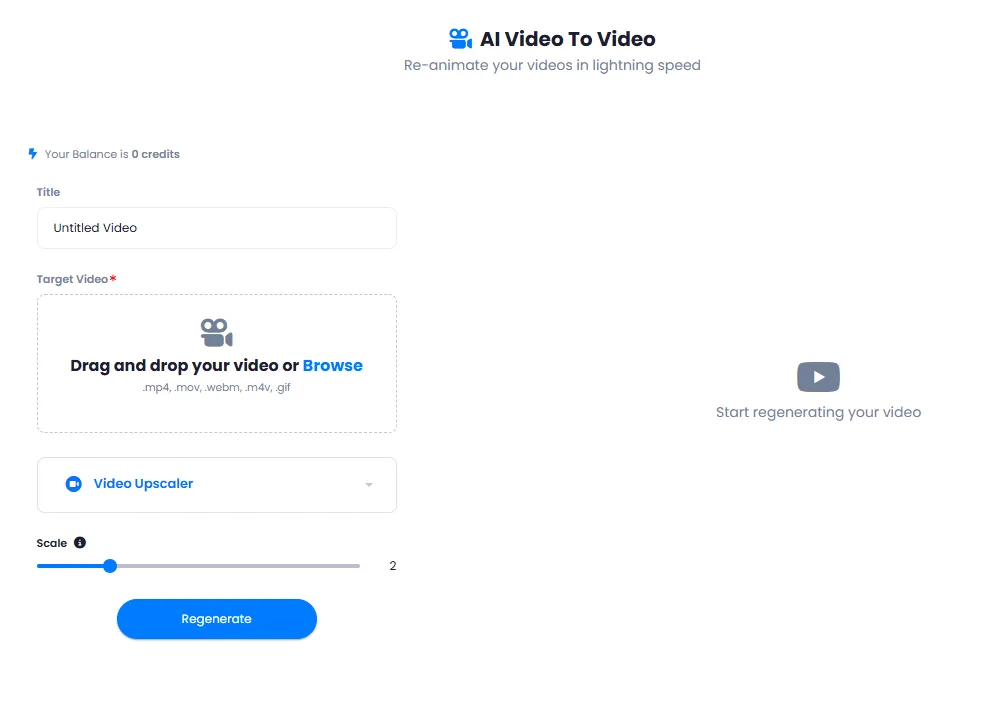
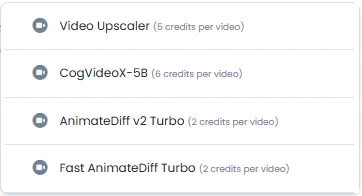
Four specialized models are designed for every type of need. Video Upscaler increases video resolution up to 8x and recovers lost details — ideal for old low-quality videos. CogVideoX performs deep restyling and reconstruction on video, suitable for more significant changes and professional outputs. Two animation models (AnimateDiff Turbo and Fast AnimateDiff) add motion and animation effects to video.
The Scale slider from 1 to 8 gives precise control over the final result. The default value of 2 creates a good balance between quality and naturalness for most cases, while higher values have a stronger impact on the image. The tool supports MP4, MOV, WEBM, M4V and GIF formats — even GIF files can be reanimated and upscaled. After each generation, you can change settings and regenerate.
If you are looking to upscale old videos, reanimate video with AI, add animation effects to video or convert GIF files to high-quality video, DeepFA's AI Video to Video tool covers all these needs with a simple interface and four specialized models.
Four specialized models for video reconstruction and upscaling
Each model is optimized for a specific need — from simple quality upscaling to complete video style reconstruction
Video Upscaler
Increase video resolution and quality up to 8x — more detail, sharper image, more professional display.
CogVideoX
Advanced video restyling and reconstruction — for more sophisticated outputs and deeper visual changes.
AnimateDiff Turbo
Add animation effects and dynamic motion to video at high speed — ideal for fast production.
Fast AnimateDiff
Optimized version for faster video animation generation — ideal for testing ideas and batch production.
Precise control over video output
Model, format and effect intensity — exactly what you need, configured in a few clicks
For Video Upscaler: resolution magnification factor. For other models: effect and style change intensity.
A meaningful name to easily identify the video in your project archive.
Why AI Video to Video with DeepFA?
Benefits that traditional video editing tools cannot provide
Reuse Existing Videos
No need to reshoot — upgrade your existing videos with AI and republish them.
Up to 8x Quality Upscaling
With the effect intensity slider from 1 to 8, precisely control video resolution and details.
Four Specialized Models
From simple quality upscaling to advanced reconstruction and animation — every need has its model.
5 Video Format Support
MP4, MOV, WEBM, M4V and GIF — even GIF files can be reanimated and upscaled.
Multiple Regenerations for Best Result
Change effect intensity settings or model and regenerate until you reach the best possible output.
Simple and Fast Interface
Just a few inputs needed: title, video file, model and effect intensity — ready to process in seconds.
Reconstruct video in four simple steps
From uploading video to receiving output — a fast and straightforward process
Upload your video
Upload or drag and drop an MP4, MOV, WEBM, M4V or GIF file from your computer or phone.
Choose the right AI model
For quality upscaling: Video Upscaler. For animation: AnimateDiff Turbo. For style reconstruction: CogVideoX.
Adjust the effect intensity
Adjust the effect intensity slider from 1 to 8. Value 2 (default) provides the best balance for most cases.
Generate and download the new video
Click generate — the new video version is ready. If not satisfied, change settings and regenerate.
Who benefits from AI video reconstruction?
Anyone who has a video and wants to upgrade it without reshooting
Social Media Content Creators
Upscale old clips for republishing at higher quality on Instagram, YouTube and TikTok
Filmmakers and Video Producers
Restyle and reconstruct ready-made footage with advanced AI models
Marketers and Advertisers
Convert old ad videos into higher quality and animated versions for new campaigns
Game Developers
Create animated content from real footage for game trailers and promotional videos
Online Stores
Upscale product introduction videos for more professional display on website and app
Artists and Creators
Convert GIF files and short clips into more professional and engaging animated outputs
A look inside the video reconstruction tool
Simple, user-friendly interface — click any image to enlarge.
What is AI Video to Video and how is it different from traditional editing?
From quality upscaling to animation and style reconstruction — everything you need to know about four specialized video-to-video models.
The main difference between the "Video to Video" tool and traditional video editing lies in the nature of the process. In traditional editing, you use software like Premiere or DaVinci Resolve to apply manual changes — cutting, color correction, adding text, etc. But in AI video to video, you upload your existing video and AI generates a completely new version with higher quality, different visual style or animation effects based on the selected model — without you manually editing a single frame. This is ideal for improving old low-quality videos, restyling ad videos without reshooting, or adding motion and life to static videos.
On DeepFA, four specialized models are designed for every need. "Video Upscaler" increases resolution and detail up to 8x — perfect for old phone‑recorded videos. "CogVideoX" (advanced reconstruction) makes deeper changes to video style and appearance. Two animation models ("AnimateDiff Turbo" and "Fast AnimateDiff") add motion and animation effects. The Scale slider from 1 to 8 gives precise control over upscaling factor (for Video Upscaler) or effect intensity (for other models). The default value of 2 provides the best balance between quality and naturalness for most cases. The tool supports MP4, MOV, WEBM, M4V and GIF formats — you can even upscale or convert GIF files into animated videos.
Video to Video vs. Traditional Editing — What is the key difference?
In traditional editing, you manually change frames. In Video to Video, AI generates a completely new version of the same video — with better quality, different style or animation effects. No technical skills or heavy software required.
Video Upscaling — up to 8x higher resolution
The Video Upscaler model converts low‑quality videos into higher resolution and more detail. The upscaling factor is controlled by the Scale slider (from 1 to 8). The default value of 2 is the most balanced option.
Advanced Reconstruction with CogVideoX — major style changes
CogVideoX is suitable when you want to change the overall look and feel of a video — from realistic to animated, or from one style to another. Its effect is controlled by the Scale slider.
Video Animation — adding motion and dynamism
Two AnimateDiff models (Turbo and Fast) add natural motion, camera movement, fabric flow or any kind of animation to static videos. The "Fast AnimateDiff" model is ideal for quick production and idea testing.
Scale Slider — precise control from 1 to 8
For Video Upscaler: magnification factor (e.g., 2 = double resolution). For other models: effect intensity (higher values mean stronger changes). The default value of 2 provides the best balance.
Support for 5 video formats — including GIF
MP4, MOV, WEBM, M4V and GIF formats are accepted. Even old GIF files can be uploaded and reconstructed into high‑quality or animated videos using AI models.
To get started, it is recommended to first test a short video (less than 30 seconds) with the "Video Upscaler" model and Scale value of 2 to get familiar with the output. If the result is satisfactory, you can try other models. For old low‑quality videos with noise, using Scale values of 3 or 4 gives better results. Every time you change settings and regenerate, a new version is created — so don't worry, you can test multiple times until you reach the best output. Final videos are saved in the "My Videos" section and are always downloadable.
Other AI video tools on DeepFA
A complete suite of AI video tools for creating, editing and enhancing videos
Answers to your questions about AI video reconstruction
Everything you need to know about the video to video tool
Upscale your first video with AI right now
Upload your old video and receive a higher quality version of it