AI Photo Studio
12 image editing tools in one place
Professional AI image processing — from Remove Background, Upscale and Reimagine to Outpainting, Inpainting and Sketch to Image conversion. All tools in one integrated studio.
AI Photo Studio — Professional Image Editing and Enhancement with 12 Specialized Tools
DeepFA AI Photo Studio is a comprehensive, integrated environment for professional AI image processing that brings 12 specialized tools together on one page. From completely reimagining image style and generating new versions with the same visual style, to precisely erasing unwanted objects and watermarks, adding new elements to specific image areas, extending images beyond their original frames, searching and replacing elements within images, automatically removing backgrounds, converting hand-drawn sketches into real photos and generating completely new images from text alone — all without Photoshop or any separate software.
The studio's two Upscale tools enable image enlargement in two different ways: Conservative Upscale precisely preserves original image details and only increases resolution, ideal for photos you do not want to change in appearance; and Creative Upscale which adds new creative visual details in addition to increasing resolution to improve the overall look of the image. The advanced Creativity and Control Strength settings let you specify exactly how freely the AI operates and how closely it follows your instructions.
If you are looking for AI image background removal, image upscaling and enlargement, AI image reimagining, inpainting, outpainting, sketch-to-realistic-image conversion or text-to-image generation, DeepFA AI Photo Studio delivers all these capabilities in one simple, fast and professional environment.
12 AI Image Editing and Enhancement Tools
Each tool is designed for a specific need. Upload your image and edit with the right tool, or use Text to Image to generate from scratch without uploading.
Reimagine
Completely redesign the overall look and style of an image while preserving its structure and original content — turn an ordinary photo into a new work of art.
Same Style Image
Generate a new image while precisely preserving the visual style of the original — ideal for creating a collection of images with a consistent style.
Erase Objects
Remove unwanted objects, watermarks, extra text or any distracting elements from an image — no editing traces left behind.
Inpaint Image
Select a specific area of the image and modify it or add new elements using AI — without altering the rest of the image.
Outpaint Image
Extend the image beyond its original frame and add more space to the edges — convert a square image to landscape or portrait format.
Search and Replace
Find any element in the image and replace it with another — for example, change sky color, flower type or any other object.
Remove Background
Automatically and precisely remove the image background and isolate the main subject — ready for use in any project.
Sketch to Image
Convert simple sketches, hand-drawn art and paper drawings into realistic, high-quality images — ideal for designers and illustrators.
Structure to Image
Convert a simple structure or framework like guide lines or wireframe into a complete, realistic image.
Conservative Upscale
Increase image resolution while precisely preserving all original details without changing content — ideal for photos that only need enlargement.
Creative Upscale
Increase image resolution while also adding creative and new visual details to improve the overall appearance of the image.
Text to Image
Generate a completely new image just by writing a text description — no image upload needed. The only tool that creates images from scratch.
Precise Control Over Final Editing Output
With text prompt, negative prompt, creativity level and control strength — get exactly the result you want.
"A serene garden with soft natural lighting and colorful spring flowers..."
"Dark, blurry, pixelated, low quality, watermark..."
Optional number for controlling output randomness — enter the same number to reproduce identical results.
Why DeepFA AI Photo Studio?
Benefits that traditional image editing software lacks, and DeepFA AI Photo Studio puts at your fingertips.
12 Specialized Tools on One Page
From background removal and upscaling to sketch-to-image and frame extension — all without separate software in one integrated environment.
Personal Image Upload
Upload your images in PNG, JPG or WEBP format and work on them with any of the 12 professional editing tools.
Generate Images from Text Without Upload
With the Text to Image tool, create a completely new image just by writing a text description — no initial image upload required.
Controllable Advanced Settings
Adjust AI creativity and control strength from 0 to 1 to get exactly the output you want.
Fast and Precise Background Removal
Without Photoshop or any heavy software, remove image backgrounds with high precision in seconds.
Two Different Upscale Modes
Conservative mode for precisely preserving original details, and Creative mode for enhanced visual improvement and adding new details.
Edit Your Image in Four Simple Steps
From selecting a tool to receiving the final output — a fast and straightforward process.
Pick your tool
Choose from 12 specialized tools based on what you want to do — such as background removal or upscaling.
Upload your image
Upload or drag and drop your image file in PNG, JPG or WEBP format.
Customize prompt and settings
Write a precise description of the desired change and adjust creativity and control strength.
Get and download your output
The tool processes and you can download the final output or use another tool for further editing.
Who Is AI Photo Studio For?
Anyone who needs fast and professional image editing and enhancement — without learning complex software.
Photographers
Upscale photos, remove unwanted objects and swap backgrounds without Photoshop or heavy software.
Online Stores
Remove product photo backgrounds and place them in professional, attractive environments to boost sales.
Graphic Designers
Convert sketches and hand-drawn art to real images, extend image frames and create new images from text.
Content Creators
Reimagine existing images with a new style and create visual variety for social media posts.
Marketers
Create visual variety in advertising images using search and replace and style reimagining.
Businesses
Quickly generate diverse professional visual content without a design team or expensive software.
A Look Inside the AI Photo Studio Interface
Simple, professional Photo Studio interface — click any image to enlarge.
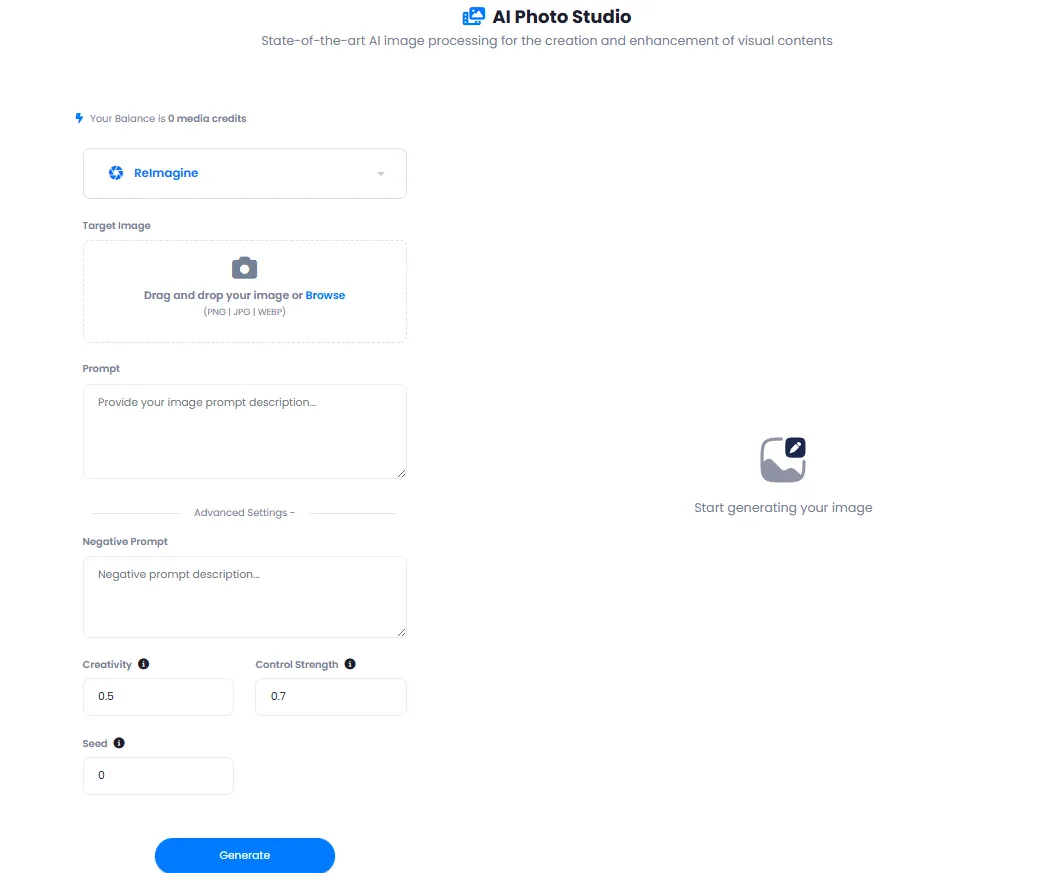
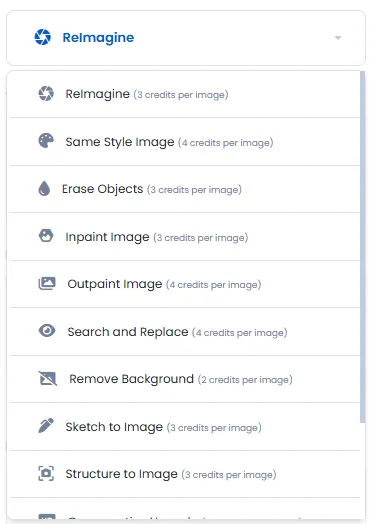
What is AI Photo Studio and what is it used for?
From background removal to outpainting, from full reimagination to sketch conversion — everything you need to know about the 12 AI Photo Studio tools.
AI Photo Studio is a specialized editing environment whose key difference from general image generation tools is its focus on processing and enhancing existing images. When you have a photo that needs its background removed, quality improved, an element erased or added, or its entire visual style changed — you need specialized tools, not a basic image generator.
Another important difference is having two distinct modes for similar tasks: two Upscale tools (Conservative and Creative) are designed for two completely different needs. When you want to simply enlarge a photo without any content change, Conservative is the right choice. When you want the final visual quality to improve even if details shift slightly, Creative delivers better results. This distinction is absent from most other tools.
Remove Background — the fastest way to isolate a subject
The Remove Background tool separates the main subject from its background fully automatically. No manual masking or Photoshop needed — upload and download. Best use cases: product photos for online stores, portraits with transparent backgrounds, and image preparation for graphic design.
Reimagine and Same Style — two different approaches
Reimagine changes the entire look of the image while preserving its original structure — turning an ordinary photo into a work of art. Same Style works in reverse: generates new content but preserves the visual style of the original image. Use the first to restyle a specific photo, the second to build a consistent visual collection.
Inpaint and Outpaint — editing beyond the original frame
Inpainting lets you change only a specific area of the image. Outpainting does the opposite: it extends the image beyond its original frame. Together, these two tools enable almost any spatial transformation of an image.
Two Upscale modes — Conservative or Creative
Conservative Upscale is for when you want higher resolution with zero change to appearance. Creative Upscale is the better choice when the final result matters more than preserving the exact original details — new details are added to make the image visually richer and more appealing.
Sketch to Image and Structure to Image — from rough draft to finished result
Sketch to Image is for designers who have drawn their idea on paper or a tablet and want to see the realistic version. Structure to Image goes a step further: it converts even simple wireframes into complete images — useful for UI design and concept visualization.
Search and Replace and Erase Objects — no editing traces left
Search and Replace lets you find a specific element in the image and swap it for something else — for example, the color of a car or the type of tree in a landscape. Erase Objects removes watermarks, distracting objects and extra text without leaving any trace behind.
Choosing the right tool depends on your specific need. If you only need to remove the background, no complex settings are required — the Remove Background tool works with just an image upload. If you want the entire visual style to change, Reimagine delivers results with a simple prompt. If only a specific area needs to change, Inpainting is the most precise tool. The key point: all these tools are available in one integrated environment — you can take the output of one tool and immediately edit it with another.
Tools That Pair with AI Photo Studio
From professional image generation to upscaling and background removal — the complete DeepFA AI image toolsuite
Frequently Asked Questions About DeepFA AI Photo Studio
Answers to common questions about tools, capabilities and how to use AI Photo Studio.
Edit Your Image with AI Right Now
Free plan is active — no payment required, start editing right now