AI Image to Video Generator
Animate your photos with cinematic motion
Upload your still image and choose from 8 advanced AI video models such as Kling, Google Veo, Haiper and Luma Dream Machine. Write your desired motion and style description, and receive a professional cinematic video in minutes — no filming equipment or technical skills needed.
Transform Your Still Images into Living Cinematic Videos
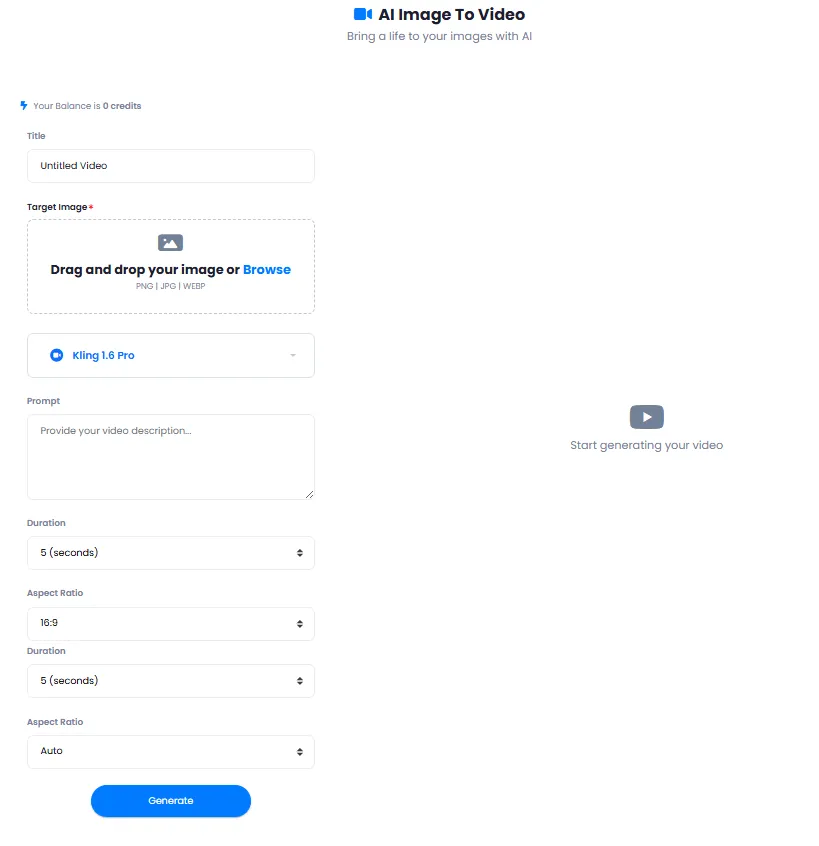
DeepFA's AI Image to Video tool allows you to generate professional and engaging videos from a single still image. The process is simple: upload your image in PNG, JPG or WEBP format, select from 8 AI video models, write a motion and style description, and configure duration and aspect ratio settings. The AI transforms your still image into a dynamic video with natural camera movement, professional lighting and animated scenes.
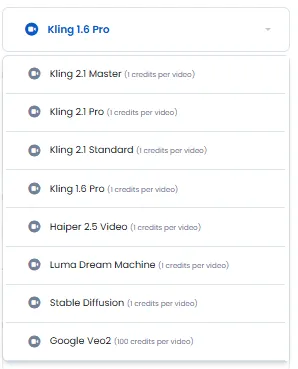
The tool supports advanced video generation models including Kling (Master, Pro and Standard versions), Google Veo, Haiper, Luma Dream Machine and Stable Diffusion. Each model offers unique characteristics in terms of image quality, motion realism, generation speed and visual style. You can set video duration between 5 and 10 seconds, choose landscape, portrait, square or auto aspect ratios, and adjust motion style to suit your needs. Outputs are ideal for social media, online advertising, business presentations and professional content creation.
The AI Image to Video tool is perfect for social media content creators, marketing and advertising specialists, graphic designers and animators, online store owners, and anyone who wants to create engaging videos from images without cameras or filming equipment. All generated videos are saved in the results section and can be viewed or downloaded at any time.
8 Advanced AI Models for Image to Video Generation
From Kling and Google Veo to Luma and Haiper — choose the model that matches your desired style and quality
Each AI model has unique characteristics. For cinematic and realistic videos, Kling and Luma models are recommended. For fast bulk production, Haiper is the best choice. Google Veo excels at complex multi-element scenes.
Why Use DeepFA AI for Image to Video?
The fastest and easiest way to bring still images to life without complex software
Image to Video Generation
Upload a still image and transform it into a dynamic professional video with natural movements.
Advanced Video Models
Choose from multiple models such as Kling, Google Veo, Haiper, Luma and Stable Diffusion.
Full Motion Control
Control camera movement, lighting, effects and video atmosphere by writing a detailed motion prompt.
Multiple Aspect Ratios for Any Platform
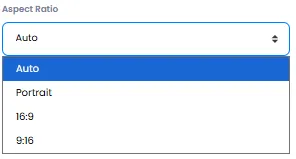
Landscape for YouTube, portrait for Instagram and TikTok, square for posts, and auto mode.
Adjustable Duration
Set video duration between 5 and 10 seconds based on your selected model and content type.
Fast Generation Without Equipment
No camera, no heavy software — generate professional videos with just a few clicks.
Convert Image to Video in 6 Simple Steps
From uploading your image to downloading a cinematic video — a fast and straightforward process
Open the tool page
From the AI Video tools section, open the Image to Video page.
Set a video title
Enter a title for your video (optional but recommended for easier management and retrieval).
Upload your still image
Upload an image in PNG, JPG or WEBP format from your computer or mobile device.
Choose an AI video model
Select from 8 available models based on your expected quality, generation speed and visual style preferences.
Write a motion and style description
Describe camera movement, lighting, visual style and overall scene atmosphere in a descriptive text.
Apply final settings and generate
Set video duration and aspect ratio, then click the generate button. Your video will be ready in minutes.
Who Needs the Image to Video Tool?
From content creators and marketers to designers and business owners
Social Media Content Creators
Turn product photos into engaging short videos for Instagram, TikTok and YouTube Shorts
Designers & Animators
Create concept and prototype videos from designed images
Online Stores & Business Owners
Turn product images into intro and promotional videos without filming costs
Marketing & Advertising Specialists
Create cinematic promotional videos from brand images and campaigns
Educators & Course Creators
Turn slides, charts and educational images into engaging videos
A Look at the Image to Video Tool Interface
Simple, user-friendly interface — click any image to view it larger.
What is AI Image to Video and how does it work?
From choosing the right model to writing motion prompts and output settings — everything you need to know about turning photos into videos with 8 advanced models.
AI image to video is a process where a still image (photo) is given as input, and advanced AI models analyze the image content and apply camera movements, lighting changes and natural animations to output a short cinematic video. Unlike traditional methods requiring complex software, manual animation and technical skills, in DeepFA's tool you simply upload your image, choose from 8 video models (Kling, Google Veo, Haiper, Luma, etc.), write a motion description, and receive your video in minutes.
The key aspect of this tool is the "Motion Prompt". Unlike generating a video from scratch where you must describe the entire scene, with image to video you only specify how the camera should move (zoom, pan, tilt, dolly), how lighting should change, and what visual style (cinematic, realistic, animated) to apply. For example: "The camera slowly pans to the right while warm golden hour lighting gradually increases". The more detailed your description, the more professional the output. Video duration is adjustable between 5 and 10 seconds, and aspect ratio is available in four modes: landscape, portrait, square and auto.
8 diverse video models — which one is right for you?
Kling models (Master, Pro, Standard, 1.6) are ideal for natural motion and high quality. Google Veo excels at complex multi-element scenes. Haiper is the fastest option for bulk production and urgent projects. Luma is best for cinematic and artistic outputs. Stable Diffusion offers a flexible open-source option.
Motion prompt — how to write it for best results
In your motion prompt, include camera movement type (slow zoom, horizontal pan, vertical tilt, dolly in/out), visual style (cinematic, realistic, animated), lighting (sunrise, sunset, studio), and motion speed. Example: "Close-up of a face, camera slowly zooms in, soft warm sunset lighting".
Video duration — adjustable from 5 to 10 seconds
Short duration (5 seconds) is best for teasers, quick intros and social media content. Longer duration (10 seconds) is ideal for product intro videos, cinematic effects and educational content. Some models have fixed durations — check when selecting.
Custom aspect ratio for any platform
16:9 landscape for YouTube and websites, 9:16 portrait for Instagram stories and TikTok reels, 1:1 square for social media feed posts, and auto mode where AI selects the best ratio based on your image.
Professional use cases — from ads to education
Product video ads, brand introductions, event teasers, educational videos (turning slides and charts into motion graphics), social media content, and even animated concept art for filmmakers and designers.
Advanced tips — how to improve output quality
Use high-resolution images (at least 1024×1024 pixels). Images with simple backgrounds and clear subjects produce better results. Use advanced models for complex scenes. If initial output is unsatisfactory, rewrite the motion prompt with more precise details.
To achieve the best results, I recommend starting with a base model like Kling Standard to test the output. If quality is good, continue with that model. If you need more cinematic motion or finer detail, move to advanced models like Kling Pro or Luma. You can also test one image with several different models and pick the best output — credits are only charged for videos you save. Most importantly, always start your motion prompt with action verbs (e.g., "the camera slowly zooms in" or "light moves from left to right") so the AI knows exactly what you want.
Other AI Video Generation Tools
DeepFA's complete AI video toolkit — from video generation and editing to avatar creation
Frequently Asked Questions About AI Image to Video
Answers to all common questions about how it works, models, formats and capabilities
Convert Your Image into a Cinematic Video Right Now
Sign up free, experience the power of 8 AI video models, and create your first video in minutes